
 Login
Login

Frequently Asked Questions
Why does my streaming disconnect sometimes after a couple of minutes of streaming with a message called "Disconnected due to poor network" ?
C4Broadcaster has a built-in mechanism in which it adapts the quality of the stream depending on your network condition (both wi-fi and mobile data). In general, disconnecting occurs after a certain time period due to the stream becoming unviewable because of the bad network conditions, so we automatically disconnect you.
In order to let you know when you’re in a zone where the signal strength of the network is low, we have added a signal icon with three tiers of colors. When pressing the icon, a popup is shown with extra details regarding your estimated network speed and network connection quality.
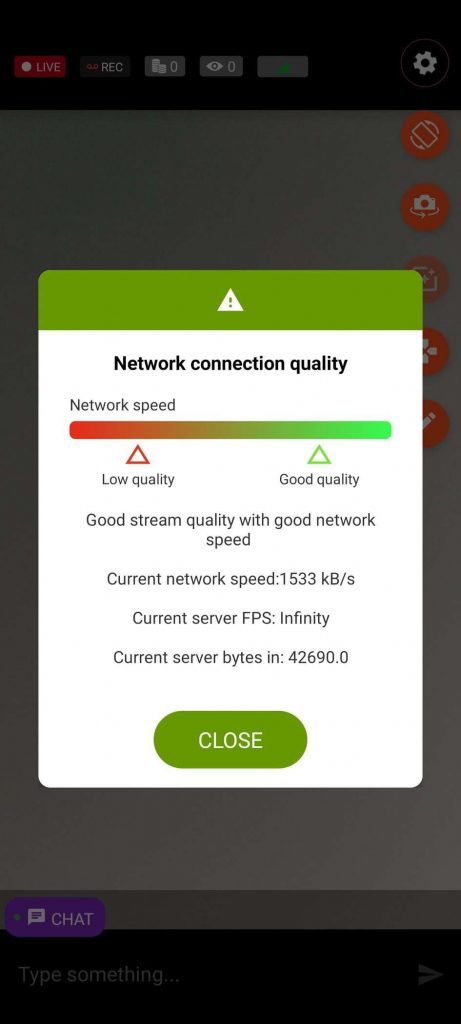
Tip: For best streaming stability, use a Wi-Fi connection with at least 3-5 Mbps upload speed. You can test your connection speed at https://speedtest.xcdnpro.com/
Why can't I see the chat, see viewers or notifications?
If the chat connection fails, you won't be able to see chat messages, the viewers count or tips received. Keep an eye on the chat connection indicator on the main chat room.
Note: Even in case the chat connection is down, the streaming is a separate component which can work in parallel. Your broadcast will continue even if chat is temporarily unavailable.
Having problems logging in, what should I do?
Please make sure the credentials you are using are correct. If you receive a "Server is unreacheable error" then please follow the instructions in the error.
If you're still having problems, please contact CAM4 support
Face masks and image filters are not available on my device
Not all devices support face masks and image filters. We are doing our best to support as many devices as possible. This feature requires devices with sufficient processing power and compatible camera APIs.
Having issues with pairing/connecting my Lovense device
Please make sure that Bluetooth is turned on and the GPS sensor is active. If it still doesn't work, then the device may not compatible with your phone
How can I silence, kick or ban someone from the chat?
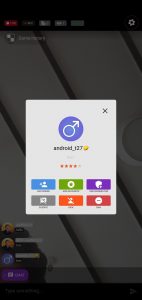
The Moderation Popup can be opened by long-pressing on a chat message from a viewer. This will allow executing certain actions towards or against that user.
The supported actions are:
-
Add as friend / Remove friend
-
Add as favorite / Remove favorite
-
Add as moderator / Remove moderator
-
Silence / Unsilence
-
Kick
-
Ban
Additionally, the private show rating, the gold membership status and the avatar of the user are shown.
How can I contact customer support from the application?
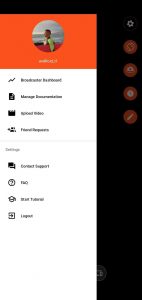
Open the menu by sliding from left to right and click on the Customer Support item to open Intercom. From there, follow the steps needed to open a chat with a customer support representative.
How can give feedback on the application?
We always welcome feedback from our users and our application is tailored on their needs. Opening the Intercom from the menu is the simplest and fastest way to talk to a CAM4 representative and propose your ideas!
How can I access account management features such as the broadcaster dashboard via C4 Broadcaster?
The menu allows you to navigate between sections of the application. In order to access it, swipe from left-to-right.
|
The menu gives you the ability to access:
|
 |
How can I see the insights of my broadcasts?
Open the menu by sliding from left to right and click on the Broadcaster's Dashboard item. It will open the broadcaster dashboard and from there you can go to the Insights Tab
My camera preview is too dark, what can I do?
If your camera preview is too dark, swipe right-to-left and toggle the "Increase camera brightness" option. This should allow the camera to capture more frames while reducing the framerate of the video. Recommended for usage in dark environments
I have updated my application and it doesn’t work anymore
If after an update, you are experiencing issues with the application, please contact the CAM4 support so we can address this issue as quickly as possible and offer you a solution for the best experience.
How do I turn off my microphone?
Click the gear icon in the upper right corner to access settings, then toggle the microphone icon to turn your microphone on or off. If the option is not present then unfortunately it is not possible for your device.
Can I set a moderator from C4 Broadcaster?
Yes, long click on a user’s name will bring up the moderation popup. From there, you can add him as a friend/favourite or as a moderator.
Can I set a password for my room?
No, password-protected private rooms are not available on C4 Broadcaster
How can I have my viewers' chat messages translated?
To enable the Chat Translator on C4Broadcaster, go to the Settings page and look at the Chat Settings category.
You can enable the chat translator by pressing on the toggle on the row.
To change the translator language, select the desired one from the languages list
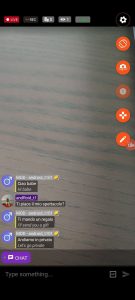
Streaming tips:
Network Connection
The network conditions are key to a good streaming experience. Wi-Fi is usually recommended since it's more stable than an indoor mobile data connection.
- Keep an eye on the signal indicator showing your network strength
- Avoid moving too far from your router during broadcasts
- Certain locations may have poor signal, which can disrupt the streaming experience for you and your viewers
- Minimum recommended upload speed: 3-5 Mbps for stable streaming
Lighting
Lighting is another key component to a good streaming experience.
- Usage of the device's flashlight is recommended in dark rooms or environments
- Turn on the "Increase camera brightness" option in settings for better exposure in low light
- Natural lighting or external light sources can significantly improve video quality
Device Stability
Keeping the device steady will contribute to a better viewing experience for your audience.
- Use phone stands or selfie sticks for stable positioning
- Avoid holding the device by hand for extended broadcasts
- Position your device at eye level or slightly above for the most flattering angle
Device Mirroring
If you own an eligible Samsung device, you can use the Your Phone app to mirror your screen onto your PC, allowing you to broadcast from your mobile device while viewing and controlling it from your computer.
General Best Practices
- Test your setup before going live with a private test broadcast
- Monitor your signal indicator throughout your broadcast
- Keep your device charged or connected to power during long broadcasts
- Close other apps running in the background to optimize performance
- Check your broadcast quality periodically using the network indicator